1. Who does what
BothDigital Workspace runs inside your company network: your data never leaves your servers. Setting it up takes two people:
| Role | What they do | Time |
|---|---|---|
| IT Admin User | Prepares a Linux server with Docker, runs one command, sends the setup link, keeps backups safe. | 10 min |
| Workspace Admin | Completes the 3-step setup in the browser, turns on HTTPS, checks backups, installs updates, invites colleagues. | 10 min |
- Your vendor emails the IT Admin User a personal download link for the installer.
- The IT Admin User runs one command on the server; it prints a setup link.
- The Workspace Admin opens the link and completes three steps; the last one shows the Installation ID for the vendor.
- The vendor issues the license; it arrives automatically (online) or as a file by email (offline).
- The Workspace Admin turns on HTTPS, checks backups and invites colleagues.
2. Before you start
IT Admin User- A Linux server (Ubuntu, Debian, RHEL or similar) with Docker Engine and Docker Compose v2 (
docker compose versionworks). - Up to ~300 users: 4 CPU cores, 16 GB RAM, 200 GB disk (more for many large files). At least 6 GB free to install.
- Ports 80 and 443 free (the installer uses 8080 / 8443 if they are taken) and 3000.
- The company mail server details (SMTP host, port, user, password) for invitations and notifications.
- Recommended: a DNS name inside your network (e.g.
workspace.company.uz) pointing to the server — needed for HTTPS. - A place to copy the nightly backups to: another machine or a network share.
3. Install (IT Admin User)
IT Admin User1. Download the installer
Your vendor sends you an email "Digital Workspace <version> — installer for <your company>" with a download button. The link is personal and works for 14 days; if it has expired, ask the vendor for a new one. The file is called digital-workspace-<version>.run (about 1 GB).
2. Copy it to the server
For example, from your PC:
scp digital-workspace-2.7.1.run admin@10.0.0.15:~/3. Run one command
sudo bash digital-workspace-2.7.1.runIt checks the server, unpacks into /opt/digital-workspace, loads everything, creates passwords and secret keys, starts Digital Workspace and prints the setup link:
[1/5] Checking this server   OK — Docker 28.0.4, 6820 MB free, ports 80/443/3000.
[2/5] Unpacking into /opt/digital-workspace
[3/5] Loading Digital Workspace (a few minutes)   Loaded.
[4/5] Creating settings and secrets   Saved .env (time zone Asia/Tashkent).
[5/5] Starting   Waiting for Digital Workspace to answer ... ready.

 Digital Workspace is running.
 Send this to your Workspace Admin to finish the setup in the browser:
     Setup link:  http://10.0.0.15/setup?code=K7QM-4XPT
Setup code: K7QM-4XPT4. Send the setup link to the Workspace Admin
That's all on the server. Options if needed: another folder sudo DW_DIR=/srv/dw bash …run, other ports sudo WEB_PORT=8181 HTTPS_PORT=9443 APP_PORT=3100 bash …run.
Done when
- The command ended with "Digital Workspace is running."
cd /opt/digital-workspace && docker compose psshows app, db, proxy, scheduler and updater running.- The setup link opens from a colleague's PC (not only on the server) — the firewall allows port 80.
- The setup link and code are sent to the Workspace Admin.
If the installer stops
| Message | What to do |
|---|---|
| run it as root | Start it with sudo. |
| Docker is not installed / not running | Install Docker Engine, or sudo systemctl start docker, then run again. |
| Docker Compose v2 is missing | Install the docker-compose-plugin package. |
| already installed | Updates are installed from the browser (Workspace settings › Updates), not by running the file again. |
| not enough disk space | Free at least 6 GB. |
| port … is already in use | Run again with other ports, e.g. sudo WEB_PORT=8181 bash …run. |
| this file is damaged | Download it again from the link. |
4. Set up in the browser (Workspace Admin)
Workspace AdminOpen the setup link from the IT Admin User. Three short steps; every field explains what to enter, and everything can be changed later in Workspace settings.
Step 1 — Your company
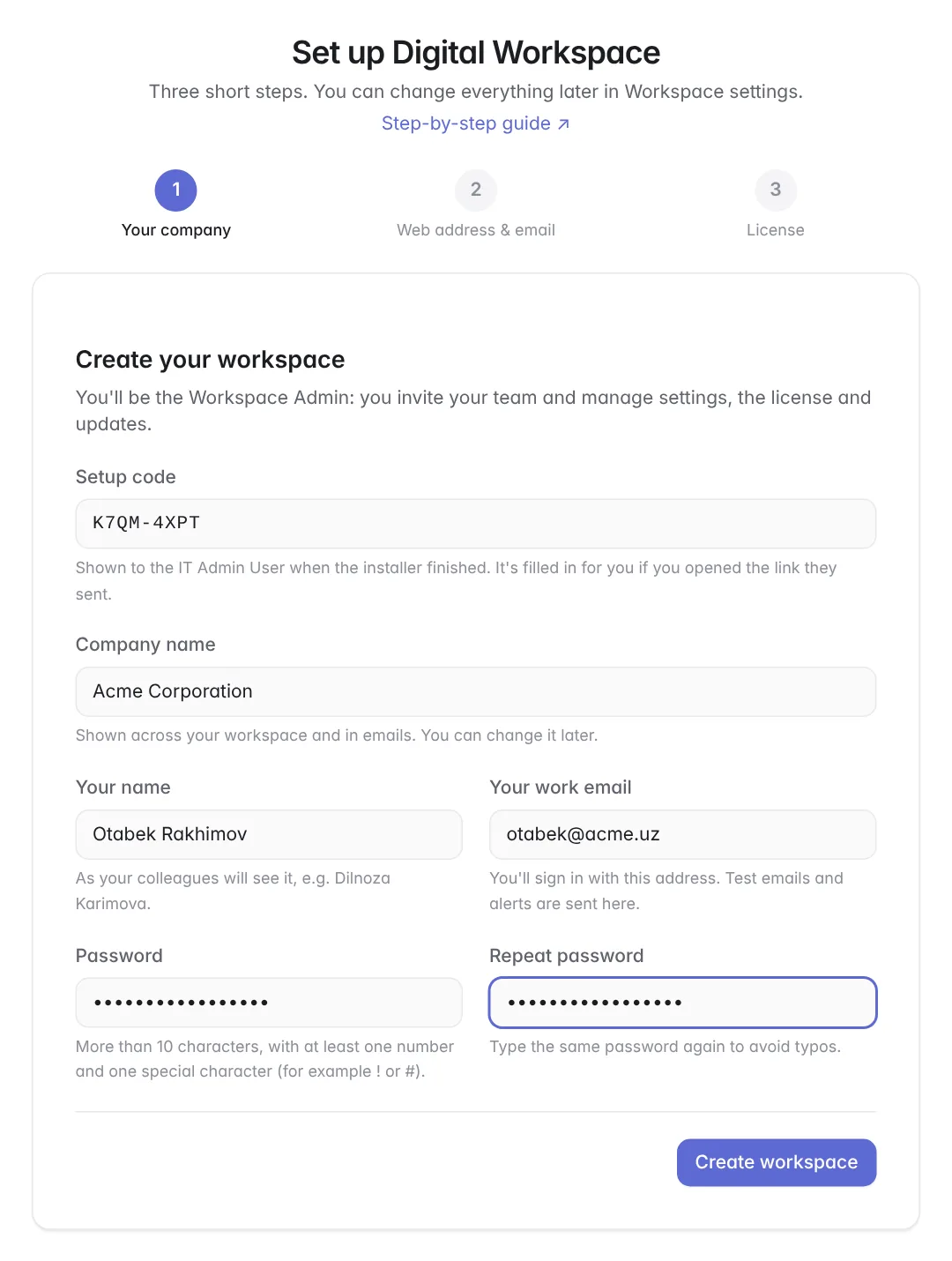
The Setup code is filled in from the link. Enter the company name, your name, work email and a password (more than 10 characters with a number and a special character), then press Create workspace. You become the Workspace Admin and are signed in.
Step 2 — Web address & email
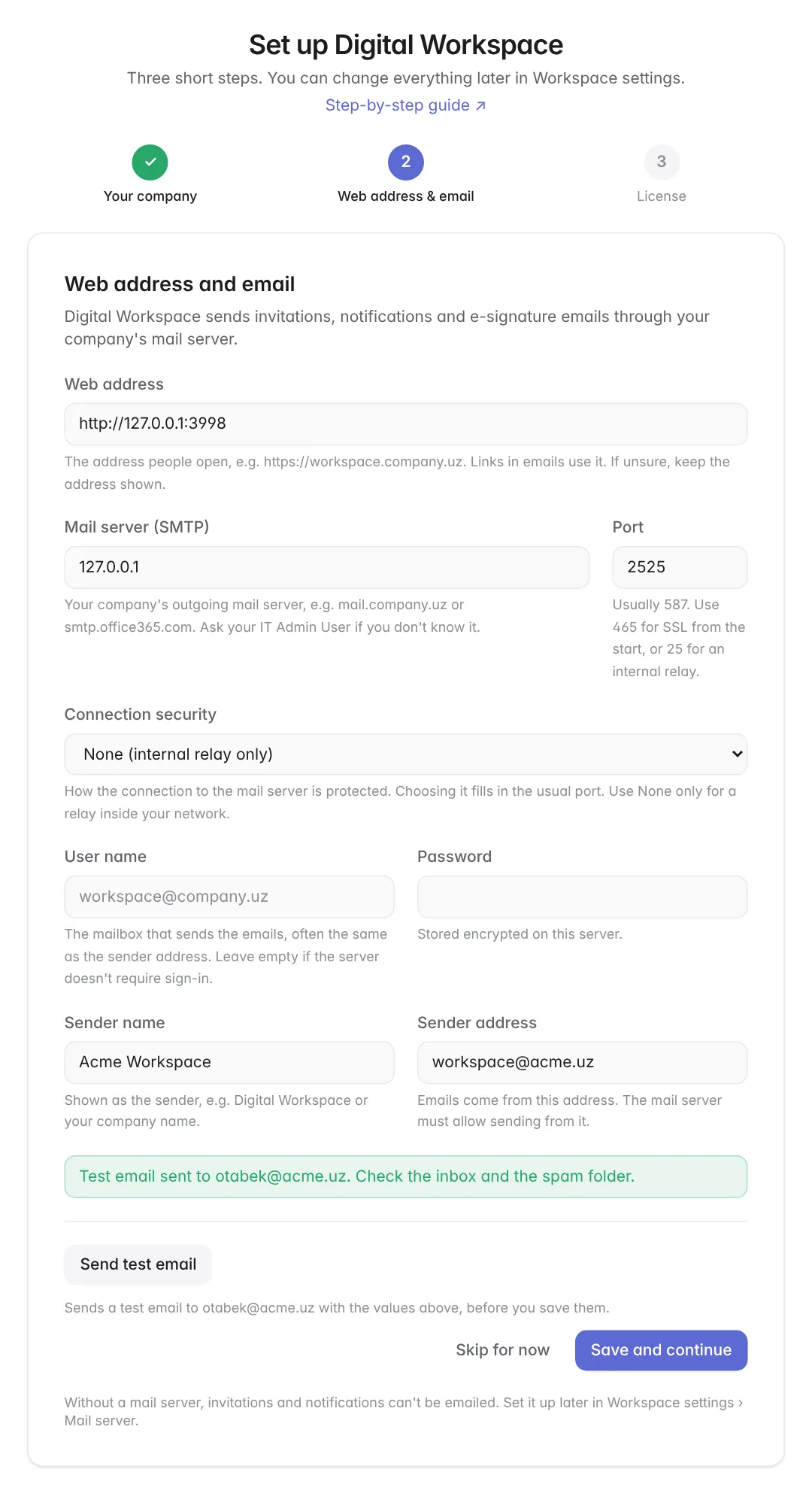
Keep the web address shown (you can switch to HTTPS later). Enter the company mail server: host, port, connection security, user name, password and the sender address. Press Send test email — it goes to your own address before anything is saved. Then Save and continue. No mail server yet? Skip for now — but invitations can't be emailed until it's set up.
Step 3 — License
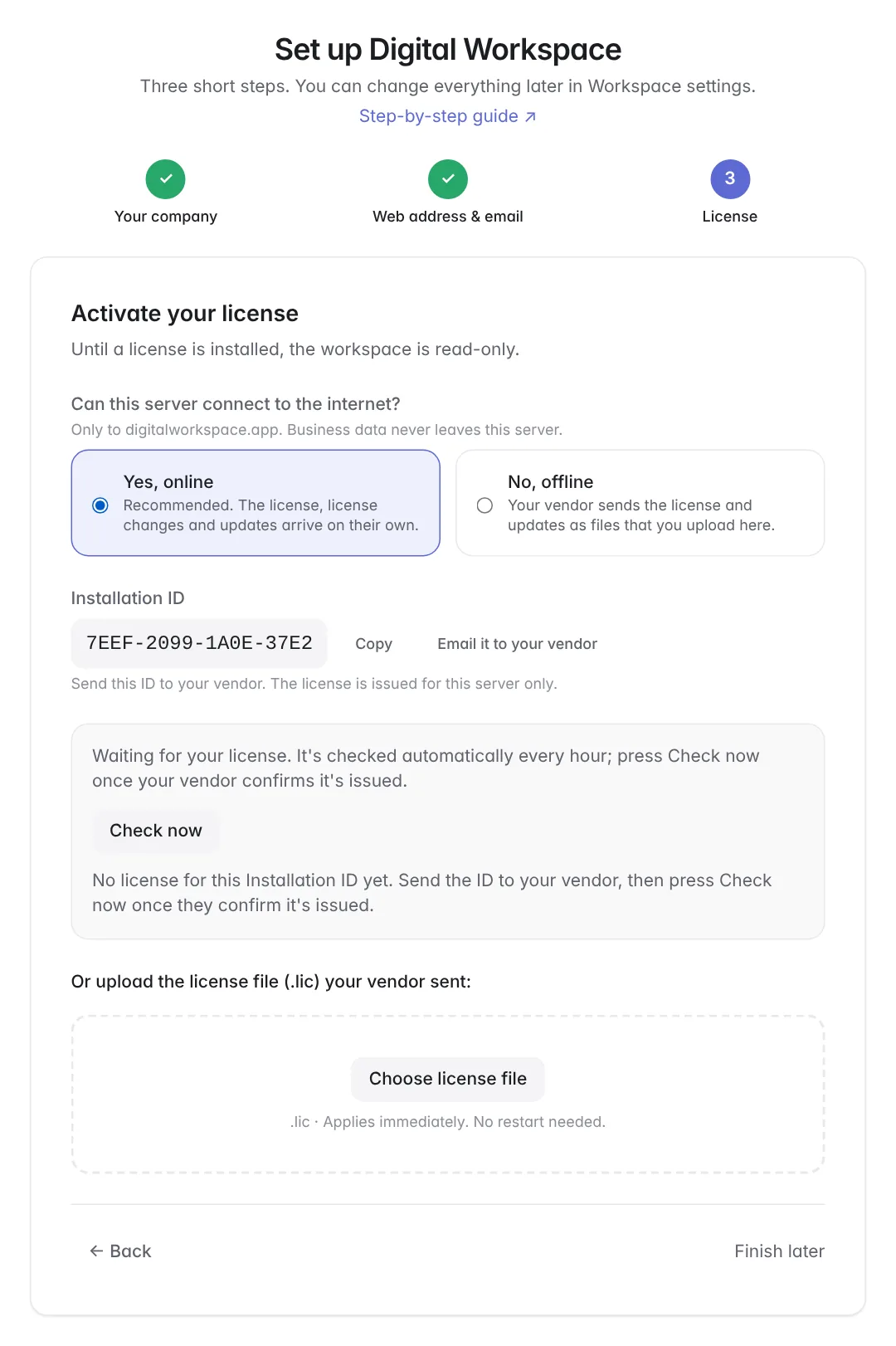
Answer Can this server connect to the internet? — Yes, online (recommended: the license and updates arrive by themselves) or No, offline (the vendor emails files). Send the Installation ID to your vendor with Email it to your vendor. Online: once the vendor confirms, press Check now. Offline: upload the .lic file from the vendor's email with Choose license file.
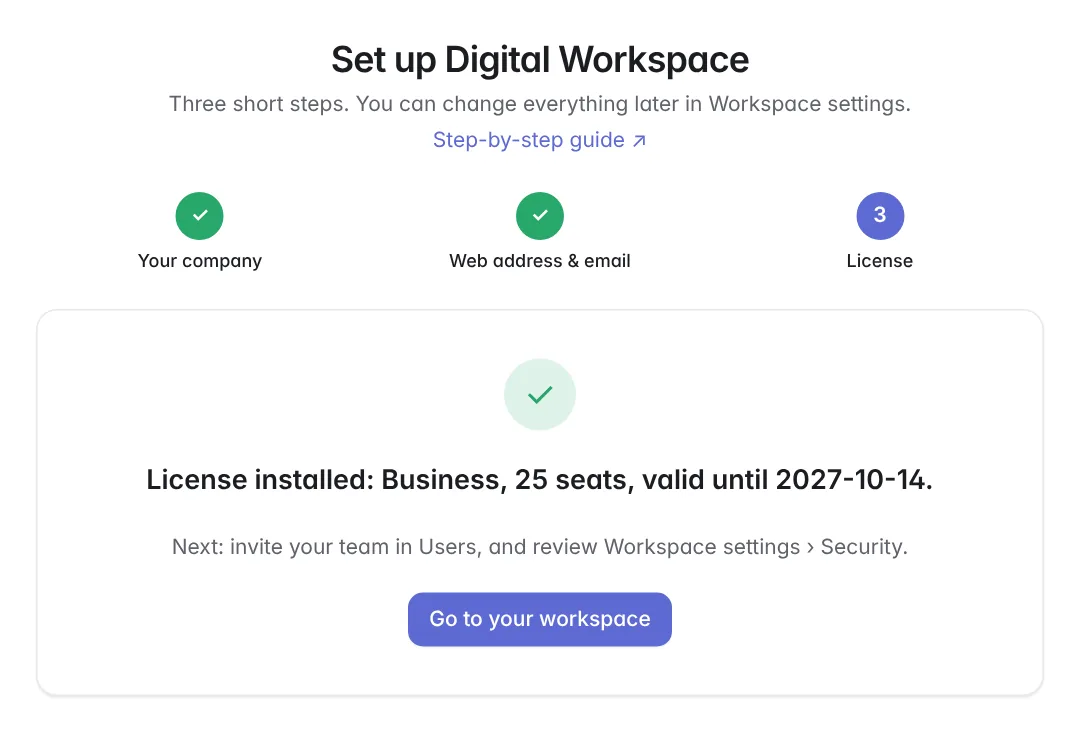
When the license is installed you see its plan, seats and end date. Press Go to your workspace. Without a license the workspace is read-only; Finish later takes you there anyway.
Done when
- You are signed in as Workspace Admin.
- The test email arrived in your inbox.
- The screen shows License installed.
5. Turn on HTTPS
Workspace AdminHTTPS encrypts the connection, so passwords and data can't be read on the network. In Workspace settings › HTTPS choose one option:
| Option | When | What you need |
|---|---|---|
| Your company's certificate | Recommended | Certificate (.crt/.pem) and private key (.key) for the server name, from your IT team or a provider. A .pfx file: openssl pkcs12 -in cert.pfx -out cert.pem -nodes. |
| This server's own certificate | No certificate to buy | IT installs the root certificate (download button on the page) on company PCs, e.g. by Group Policy; until then browsers show a warning. |
| Automatic (Let's Encrypt) | Public name | The name is public on the internet and ports 80 and 443 reach this server. |
- Ask the IT Admin User to add a DNS name (e.g.
workspace.company.uz) pointing to the server. - Choose the option, enter the server name, add the files if needed, press Save.
- Press Check HTTPS — it should say Working.
- Open the new HTTPS address, sign in again and turn on Send everyone to HTTPS. (It can only be switched on from a page already open over HTTPS, so nobody gets locked out.)
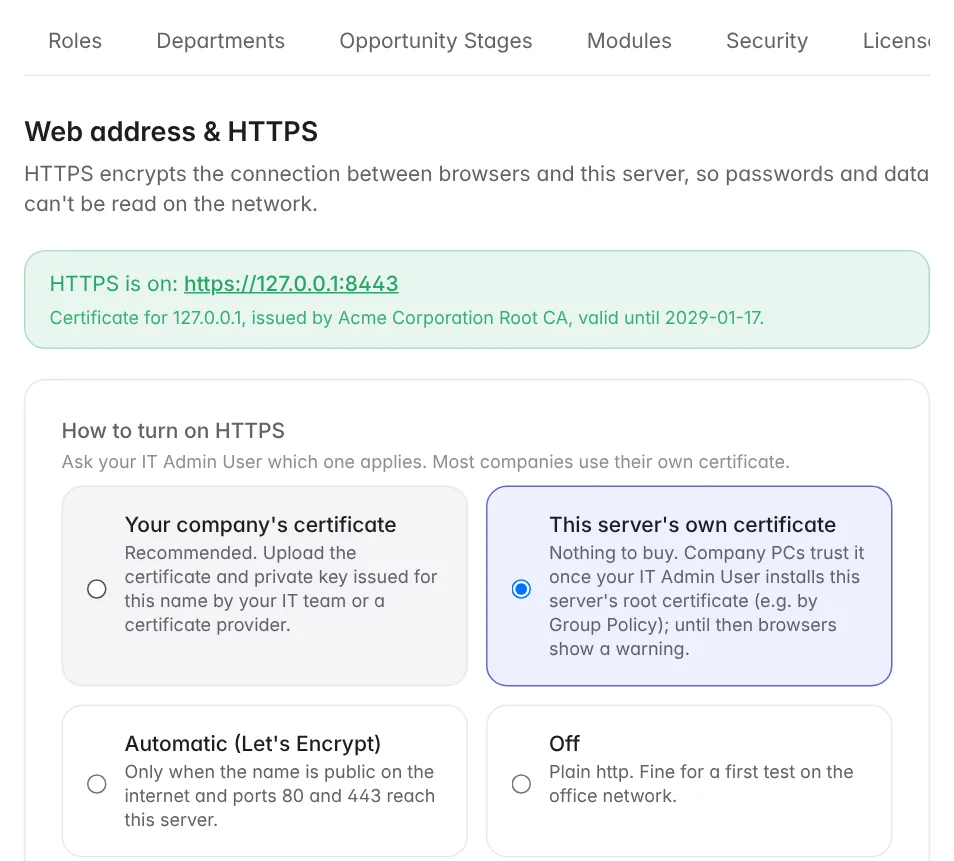
http://<server IP>:3000, and the IT Admin User can turn HTTPS off: docker compose exec app dw https off.6. Backups and restore
BothEvery night (01:00 server time) the database and all uploaded files are saved to /opt/digital-workspace/backups/<date>; the newest 7 are kept. Change the time and count in Workspace settings › Backups; Back up now makes one immediately. A red banner appears if a backup fails.
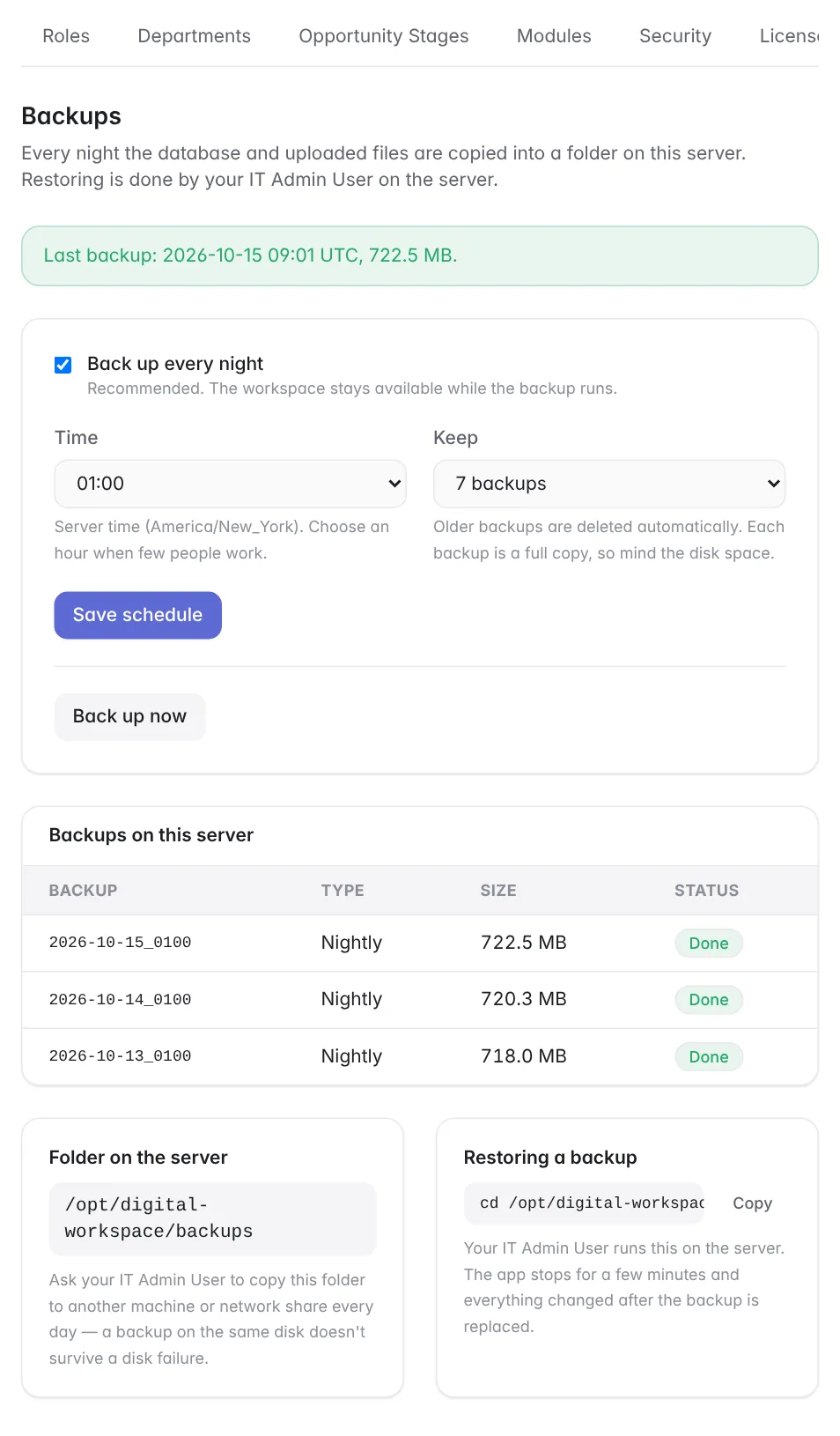
For example, a daily copy at 03:00 with cron:
0 3 * * * rsync -a --delete /opt/digital-workspace/backups/ backup@nas:/backups/digital-workspace/Restore a backup (IT Admin User)
The app stops for a few minutes; everything changed after the backup is replaced.
cd /opt/digital-workspace
sudo ./restore.sh                     # list the backups
sudo ./restore.sh 2026-10-15_0100     # restore one
sudo ./restore.sh /mnt/nas/2026-10-15_0100 # a copied backup folder7. Settings and inviting colleagues
Workspace AdminEverything about the installation is in Workspace settings (only the Workspace Admin sees these tabs):
| Tab | What it's for |
|---|---|
| License | Seats in use, end date, Installation ID, usage report (offline customers send it before renewal). |
| Updates | New versions, Update now, automatic updates in a maintenance window, update files for offline servers. The database is backed up first; a failed update rolls back by itself. |
| Backups | Nightly backups, Back up now, restore command. |
| Mail server | Web address and SMTP server, test email. |
| HTTPS | Certificate and secure address. |
| Security | Sign-in rules for the whole server: inactivity timeout, devices per person, maximum session length. |
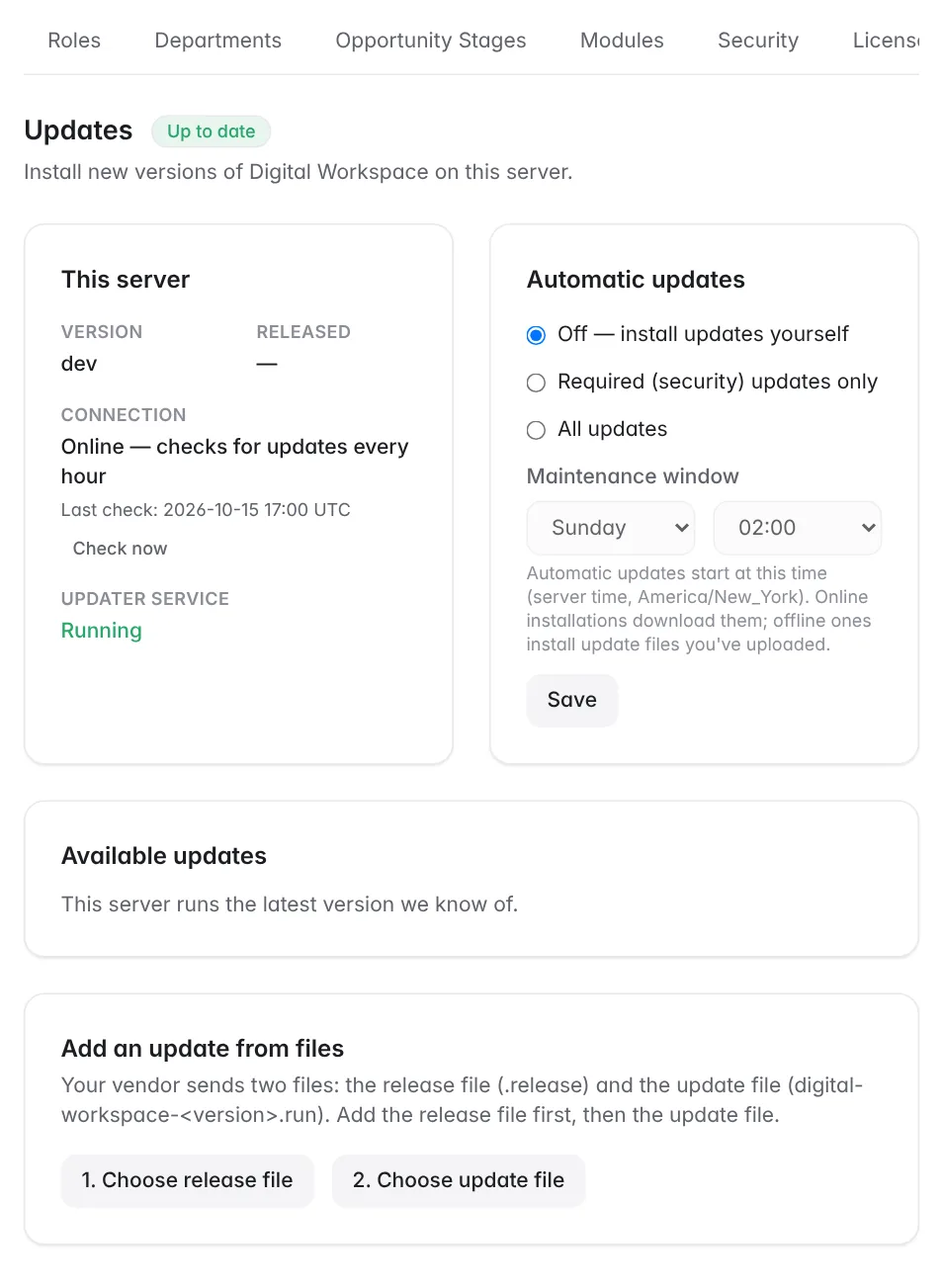
Invite colleagues
Open User Management › Invite a member, enter a name and email and press Send invite. They receive an email from your company mail server with the sign-in link and a temporary password, and choose their own password at first sign-in. Then give them an access role.
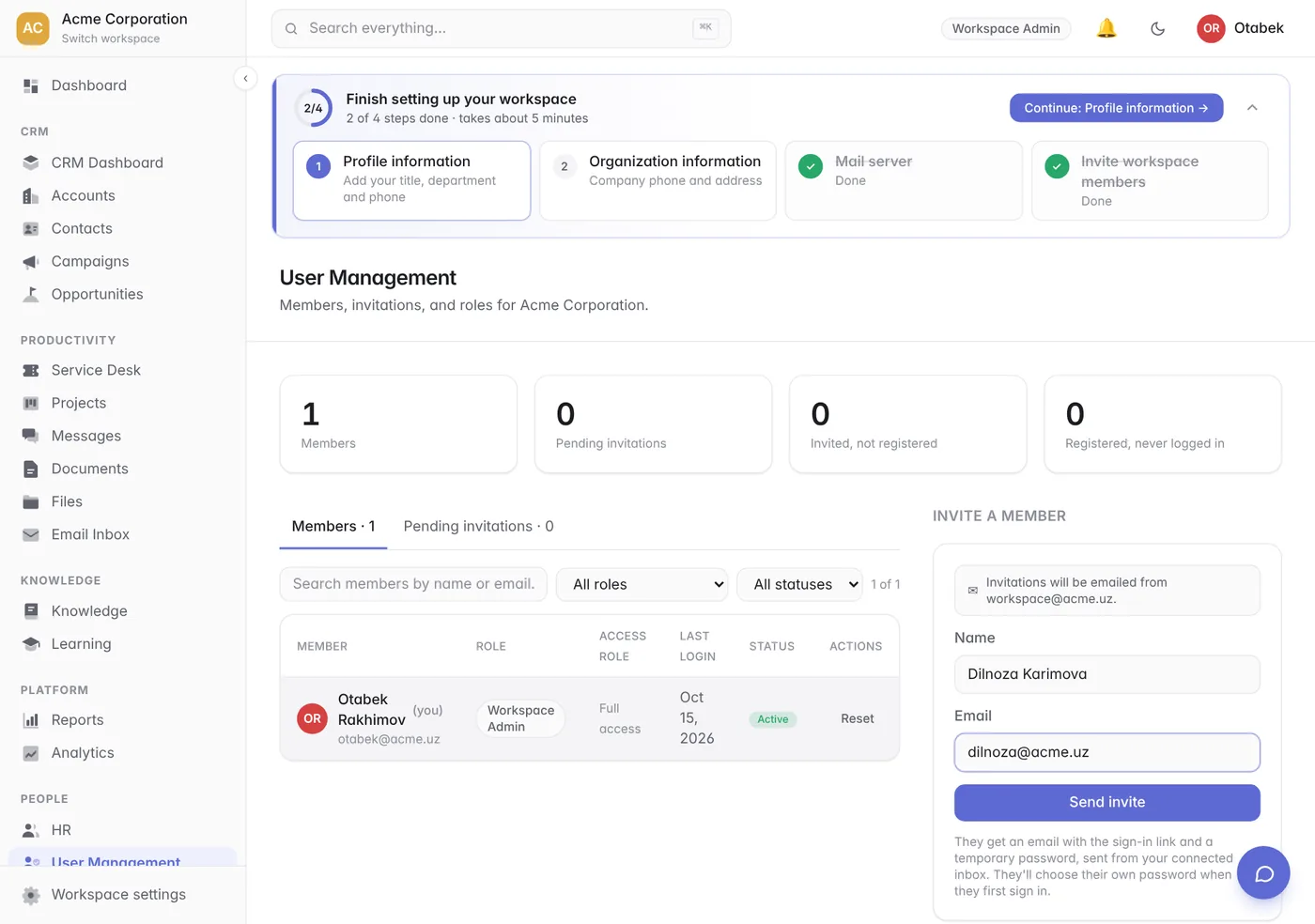
Done when
- HTTPS shows Working and the http address sends people to HTTPS.
- A backup is listed as Done and the IT Admin User copies the folder off the server.
- At least one invited colleague has signed in.
8. Server commands (IT Admin User)
IT Admin UserRun these in /opt/digital-workspace:
| Task | Command |
|---|---|
| Status | docker compose ps |
| Logs | docker compose logs -f app |
| Restart | docker compose restart app |
| Admin forgot the password (no email needed) | docker compose exec app dw reset-admin <email> |
| List admin accounts | docker compose exec app dw admins |
| Back up now / list backups | docker compose exec app dw backup · dw backups |
| Restore a backup | sudo ./restore.sh <backup> |
| Check or turn off HTTPS | docker compose exec app dw https status · dw https off |
| All commands | docker compose exec app dw help |
dw reset-admin prints a one-time sign-in link valid for 1 hour — give it to the admin in person or by phone.
9. Questions
BothOur server can't reach the internet. Does it work?
Yes. Choose No, offline in setup step 3. Your vendor emails the license file and, for each new version, two update files that you add in Workspace settings › Updates.
What data leaves our server?
Business data never does. An online server sends only its Installation ID, version and user counts (no names or emails) to check for updates and license changes.
How do we add seats or renew?
Write to your vendor. You get the new license by email; online servers install it by themselves within an hour. Reminders arrive 30 and 7 days before the end date; after it there are 30 days of grace before the workspace becomes read-only.
We are moving to a new server.
Install on the new server, restore the latest backup there with sudo ./restore.sh, and send the new Installation ID to your vendor — they move the license.
Can we use our own reverse proxy (nginx, IIS)?
Yes: point it at port 3000 and leave HTTPS off in Workspace settings.
Screenshots show the English interface; every screen is also available in Russian and Uzbek.